
PhotoRobot Makros Konfigurations- und Funktionalitätsleitfaden
Die folgende Benutzeranleitung beschreibt die Konfiguration und Funktionalität der Makros in der PhotoRobot Controls App ("CAPP"). Makros sind ein äußerst leistungsfähiges Automatisierungstool, das selbst die komplexesten Erfassungs-Workflows über einzelne oder mehrere Ordner (Drehungen, Standbilder usw.) vereinfachen soll. Weit über die Ausführung einfacher Befehle hinaus ermöglichen Macros die vollständige Automatisierung der Studioproduktion.
Zum Beispiel kannst du eine Sequenz so programmieren, dass sie pausiert, sodass du ein Objekt physisch umdrehen und seine andere Hemisphäre in einen separaten Ordner aufnehmen kannst. Dies ist ein wesentliches Merkmal, um den Boden von Gegenständen auf jeder Maschine zu fotografieren, die nicht von unten fotografiert (im Gegensatz zum PhotoRobot Frame 3D-Plattenspieler ). Es ist dann möglich, bestimmte Bilder automatisch aus einer Drehung zu extrahieren und in eine statische Bildgalerie zu kopieren, wodurch die Notwendigkeit vollständig entfällt, dieselben Winkel zweimal zu fotografieren.
Egal, ob Sie automatisierte Bildbearbeitungen durchführen, Arbeitsbereiche und Presets anwenden oder Aktionen über Barcodes und Tags auslösen müssen – Macros bieten unendliche Möglichkeiten, Ihren Fotoprozess drastisch zu beschleunigen.
1 - Wie man PhotoRobot-Makros ansieht und anpasst
Um ein Makro anzusehen oder seine Grundeinstellungen (Name, Barcode, Tag, Notizen) anzupassen, öffnen Sie Einstellungen in CAPP und klicken Sie in den Seitenleisten-Menüs auf Makros .
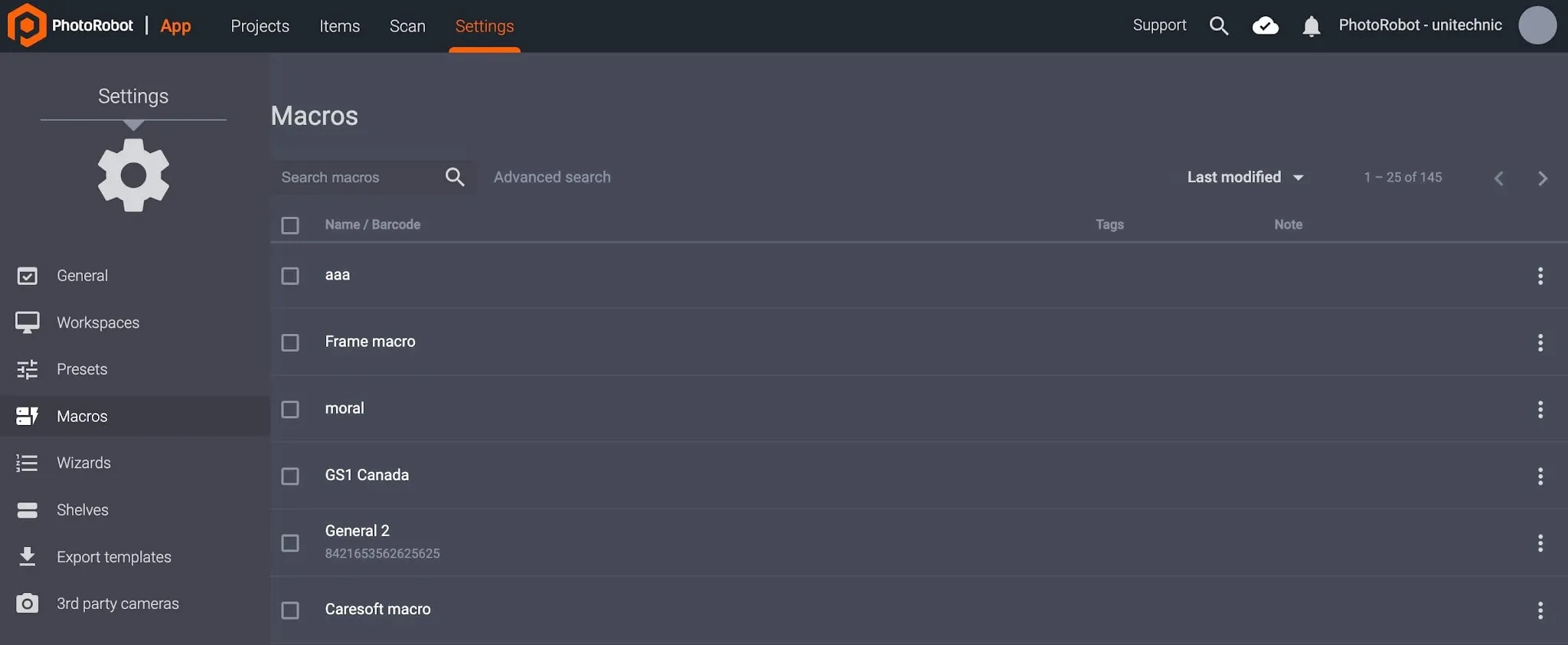
- Verwenden Sie die erweiterte Suche oben in der Liste der Makros, um ein Makro nach Namen zu finden, oder wählen Sie einzelne Makros aus, indem Sie auf einen Makronamen aus der Liste klicken.
Hinweis: Die Auswahl eines Makros zeigt das Makro mit seinen Befehlen in Schreibschutz an. Nutzer können jedoch hier Name, Barcode, Tags oder Notiz konfigurieren.
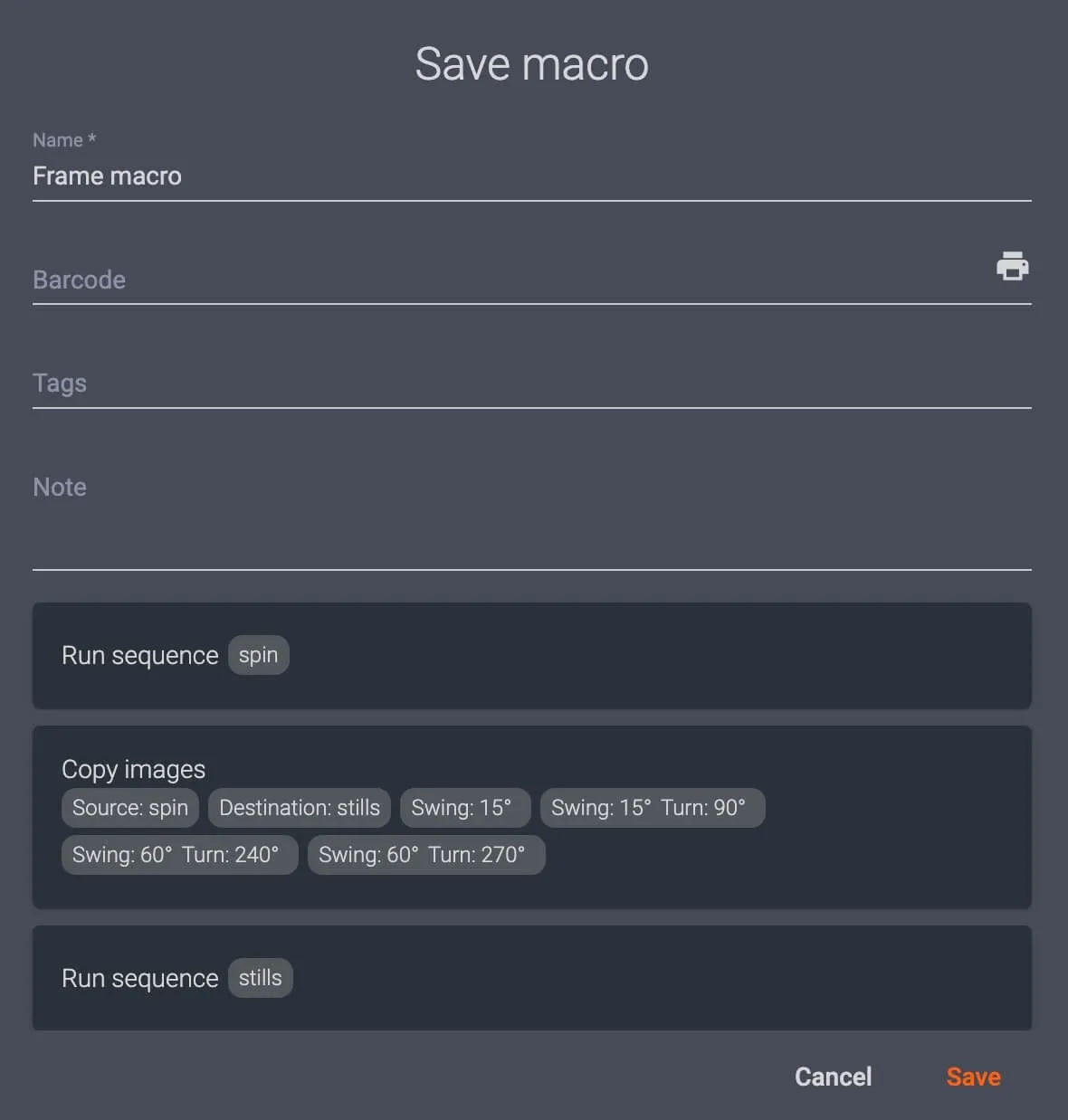
- Wenn Sie Felder anpassen, klicken Sie unten rechts im Makro-Dialog auf Speichern, um die Benutzereinstellungen zu bestätigen.
2 - Wie man ein neues Makro erstellt
Um ein neues Makro zu erstellen, erstellen Sie ein neues Element oder öffnen Sie ein vorhandenes Element in der lokalen Version von CAPP.
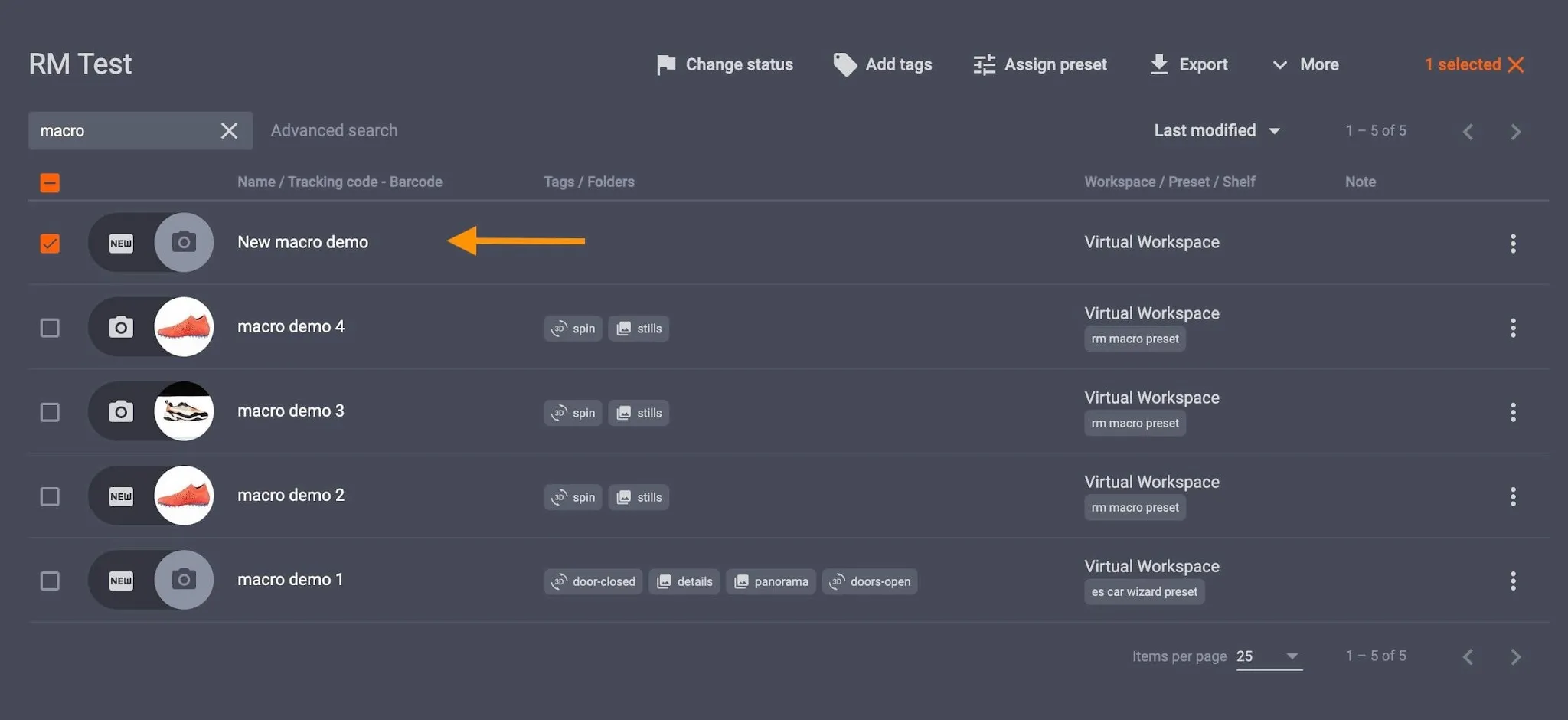
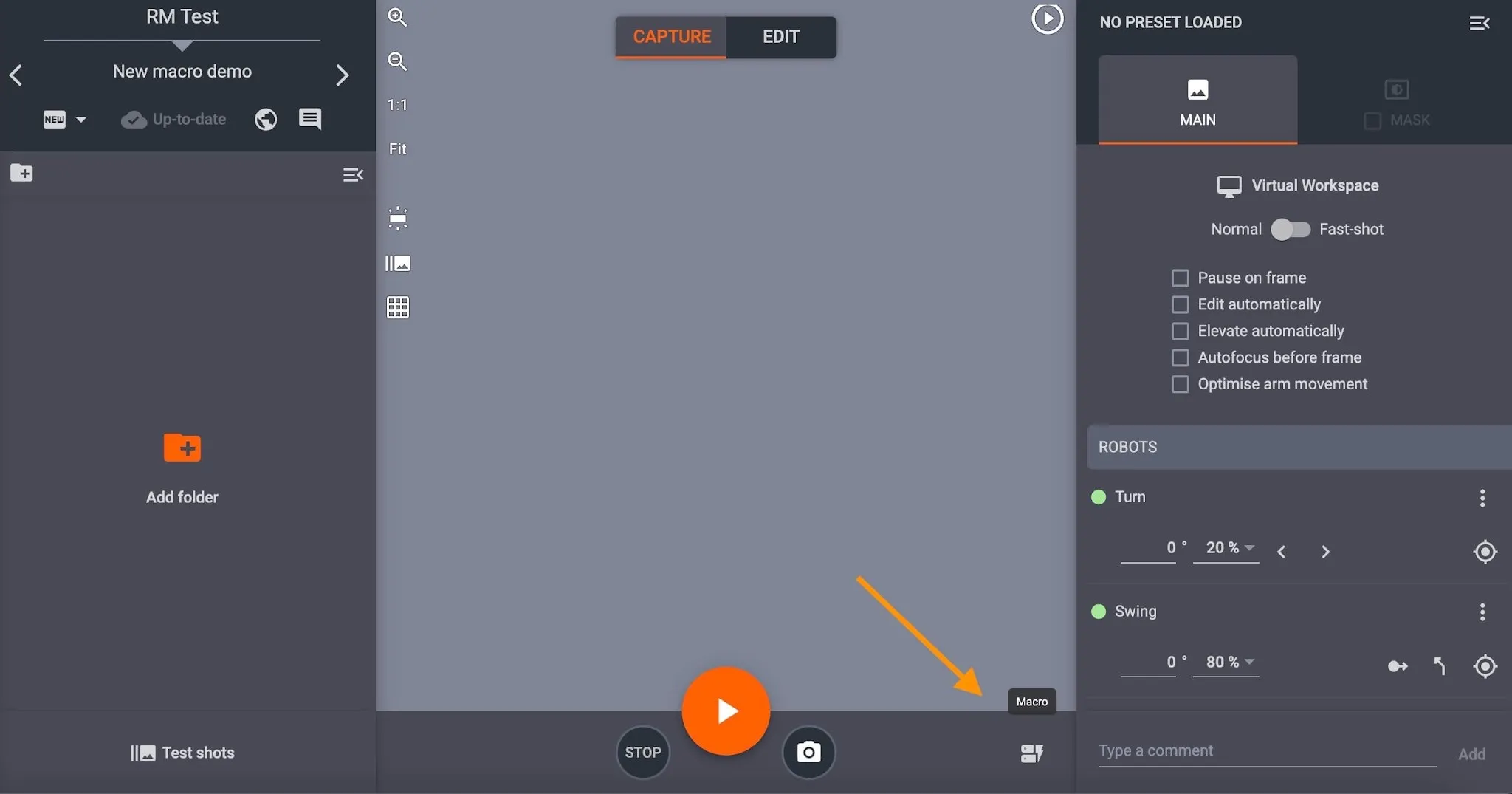
Im Element befindet sich der Button zum Zugriff auf Makros unten rechts im Capture-Modus-Interface. Greifen Sie auf die Makroeinstellungen zu, indem Sie auf die Schaltfläche Makros und Neues Makro klicken.
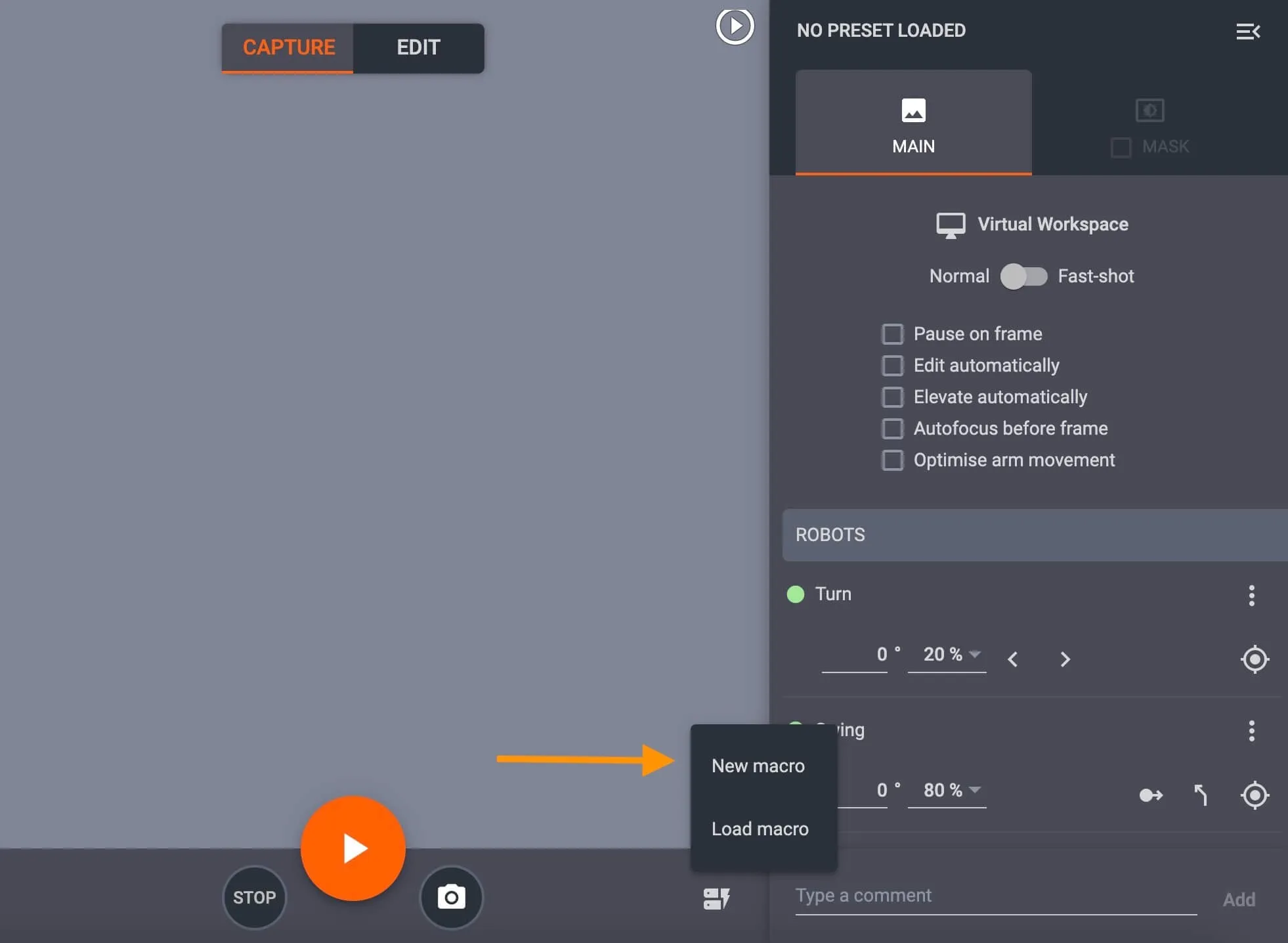
Beim Erstellen eines neuen Makros öffnet sich ein Pop-up-Fenster, um das Makro mit Namen und Befehlen zu definieren.
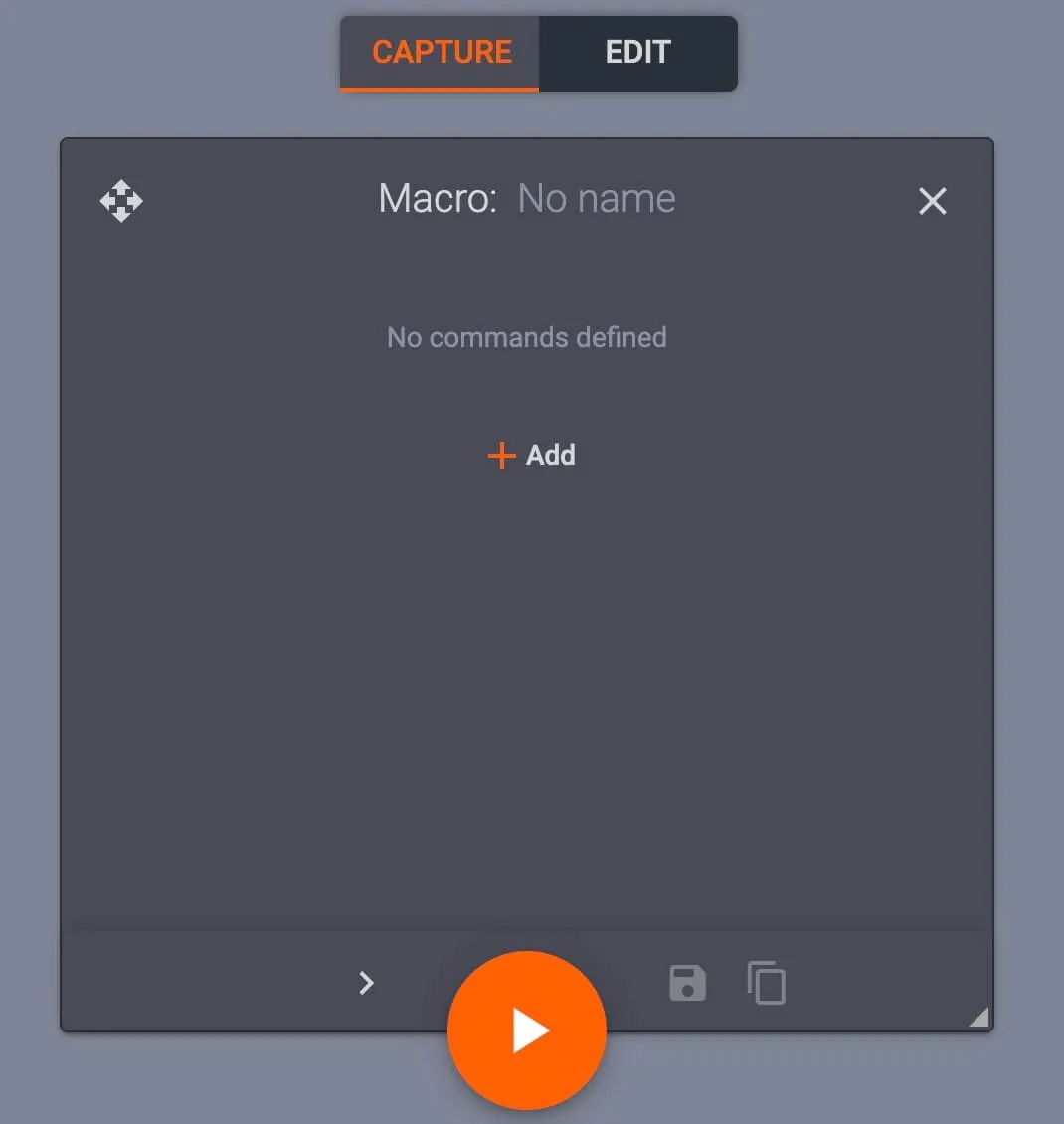
Klicken Sie auf das Feld oben im Makro-Dialog, um den Namen zu setzen, und drücken Sie + Hinzufügen , um Makrobefehle zu konfigurieren.
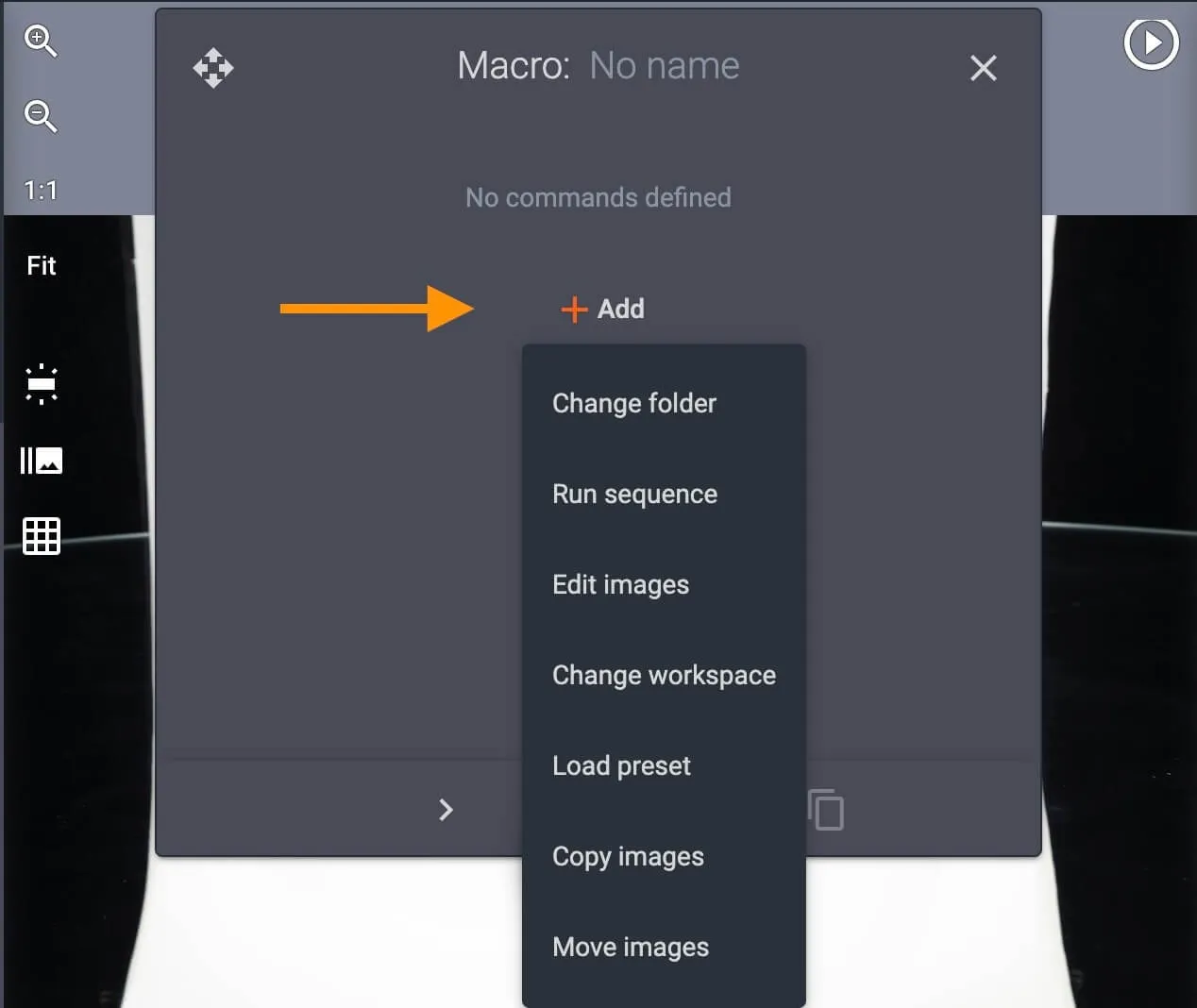
Konfigurieren Sie Ordner ändern, um Befehle für einen vorhandenen Ordner auszuführen, z. B. für einen Dreh- oder Standbildordner.
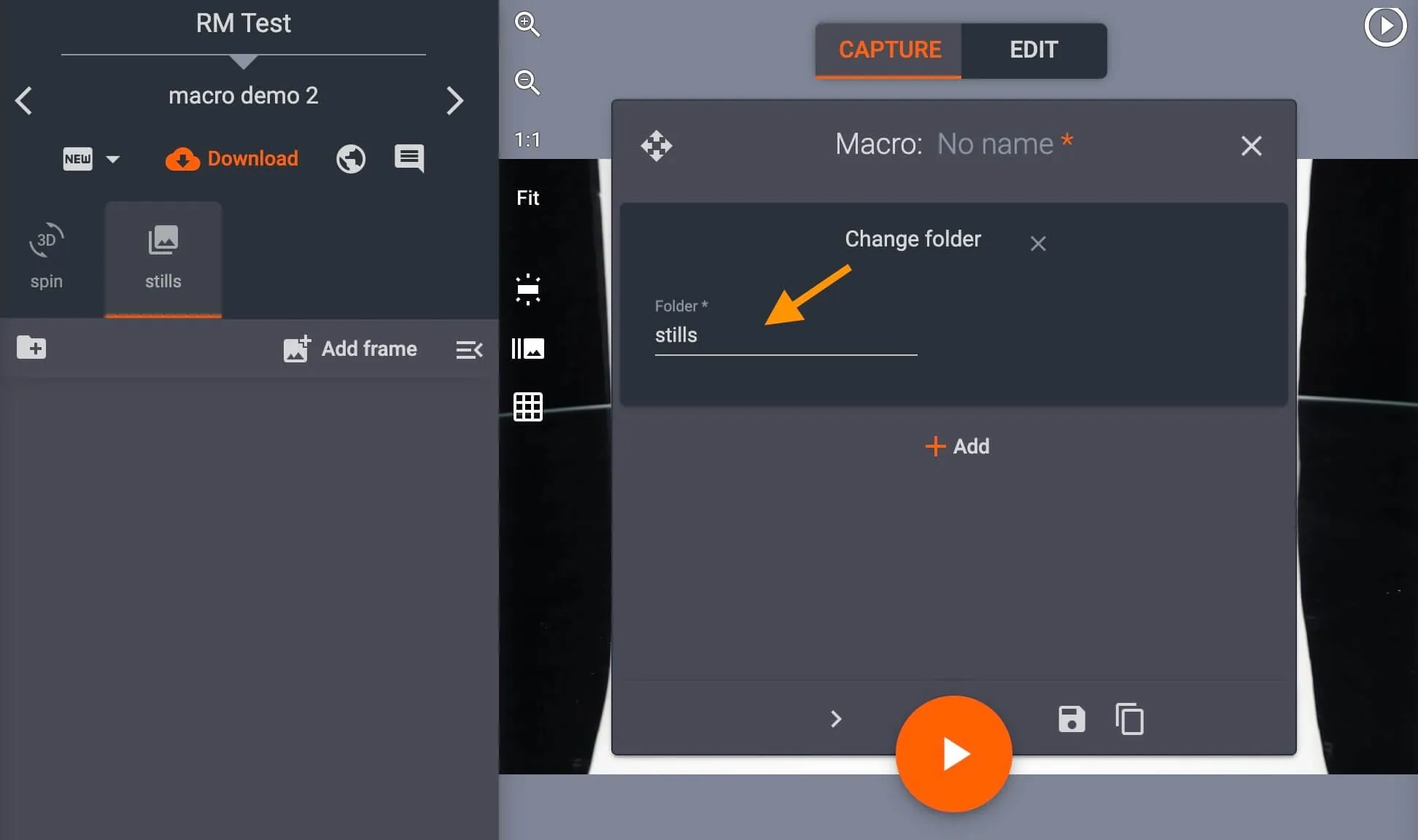
Stelle Run-Sequenz so ein, dass sie eine Sequenz ausführt, zum Beispiel: nur auf einem Spin-Ordner oder um anzugeben, in welchem Ordner die Sequenz ausgeführt werden soll (nur Standbilder, nur Drehen usw.).
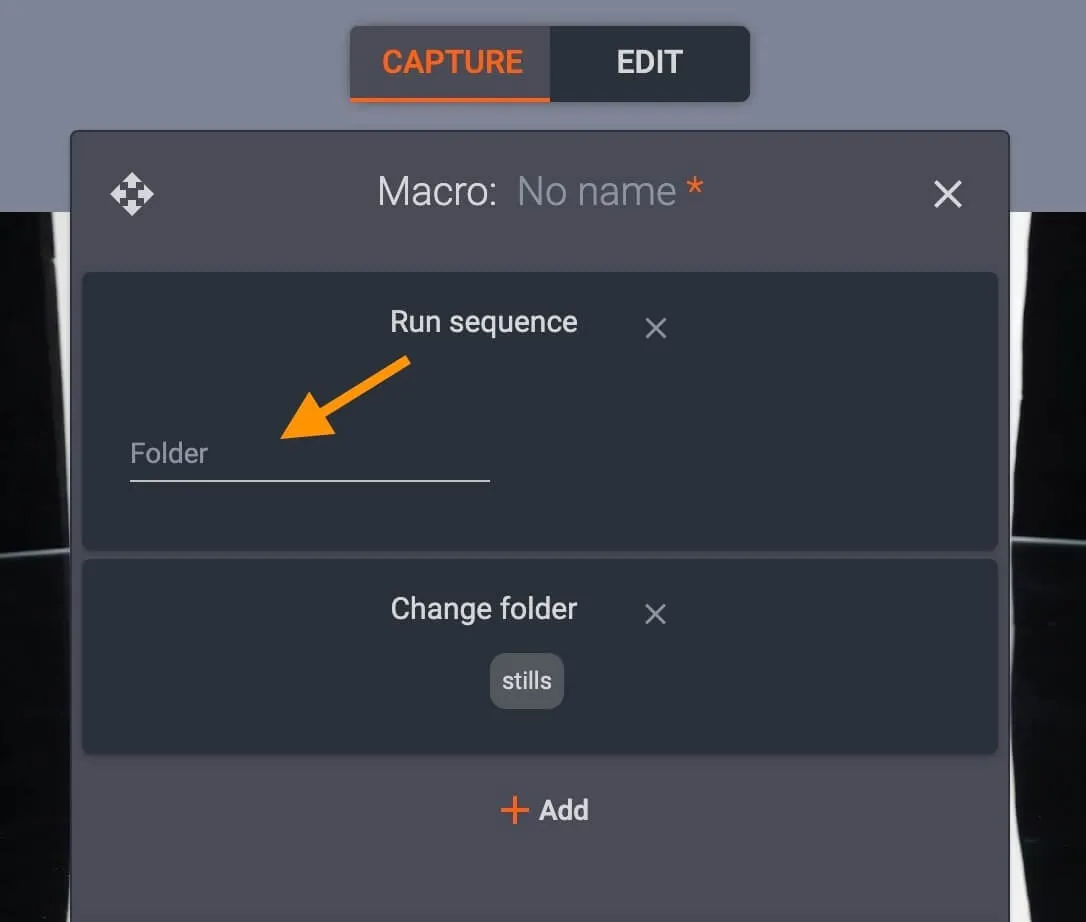
Verwenden Sie Copy Images , um Quell- und Zielordner mit bestimmten Schwung- oder Wendewinkeln zu bestimmen.
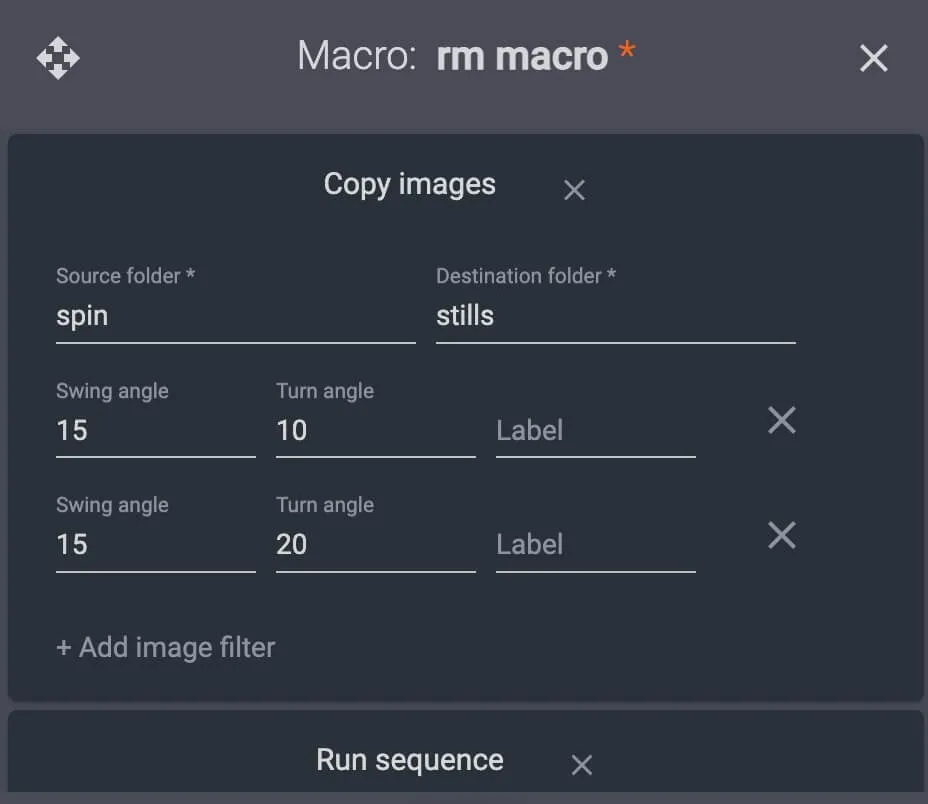
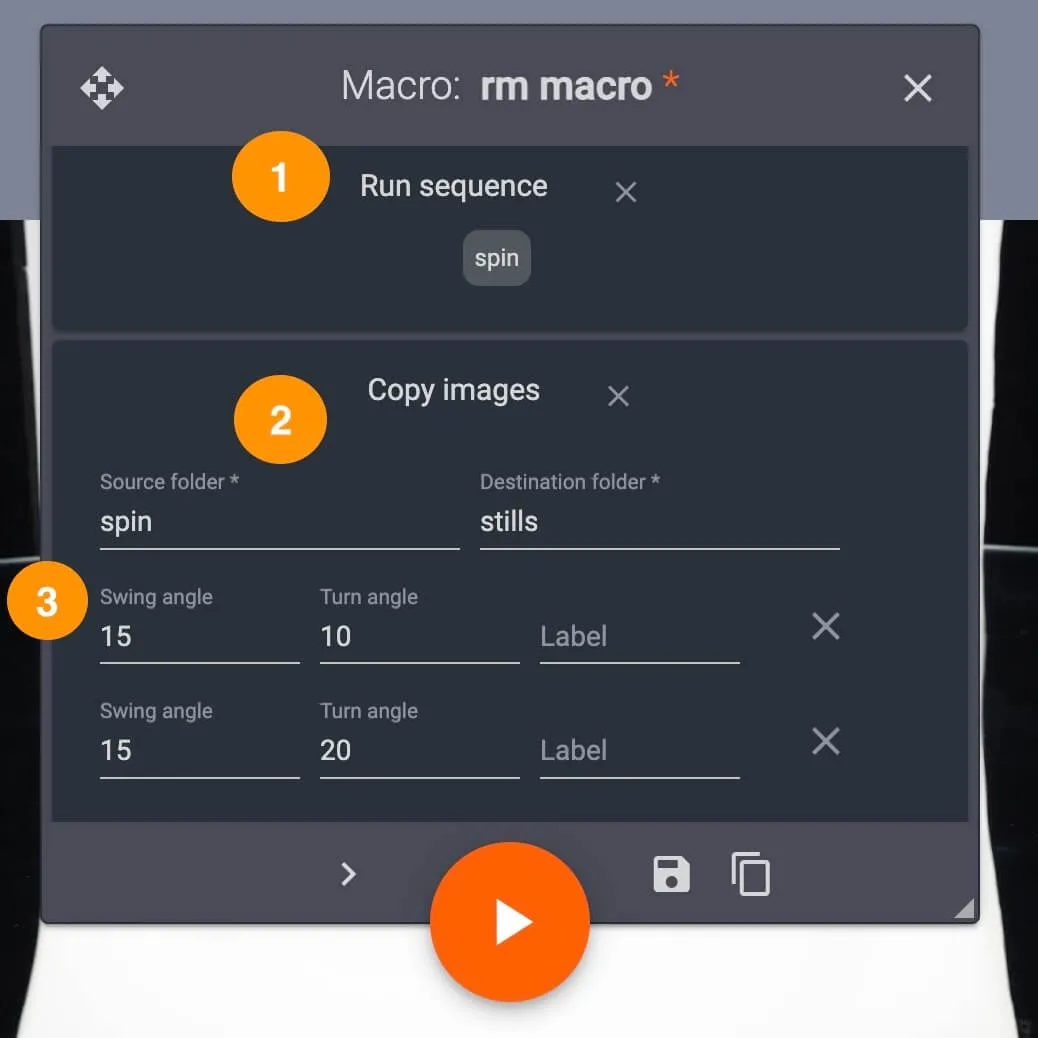
Beispielsweise kann ein Makro das System anweisen, eine 360°-Drehung zu erfassen und zwei Frames aus dem Drehordner in einen separaten Standbildordner zu kopieren.
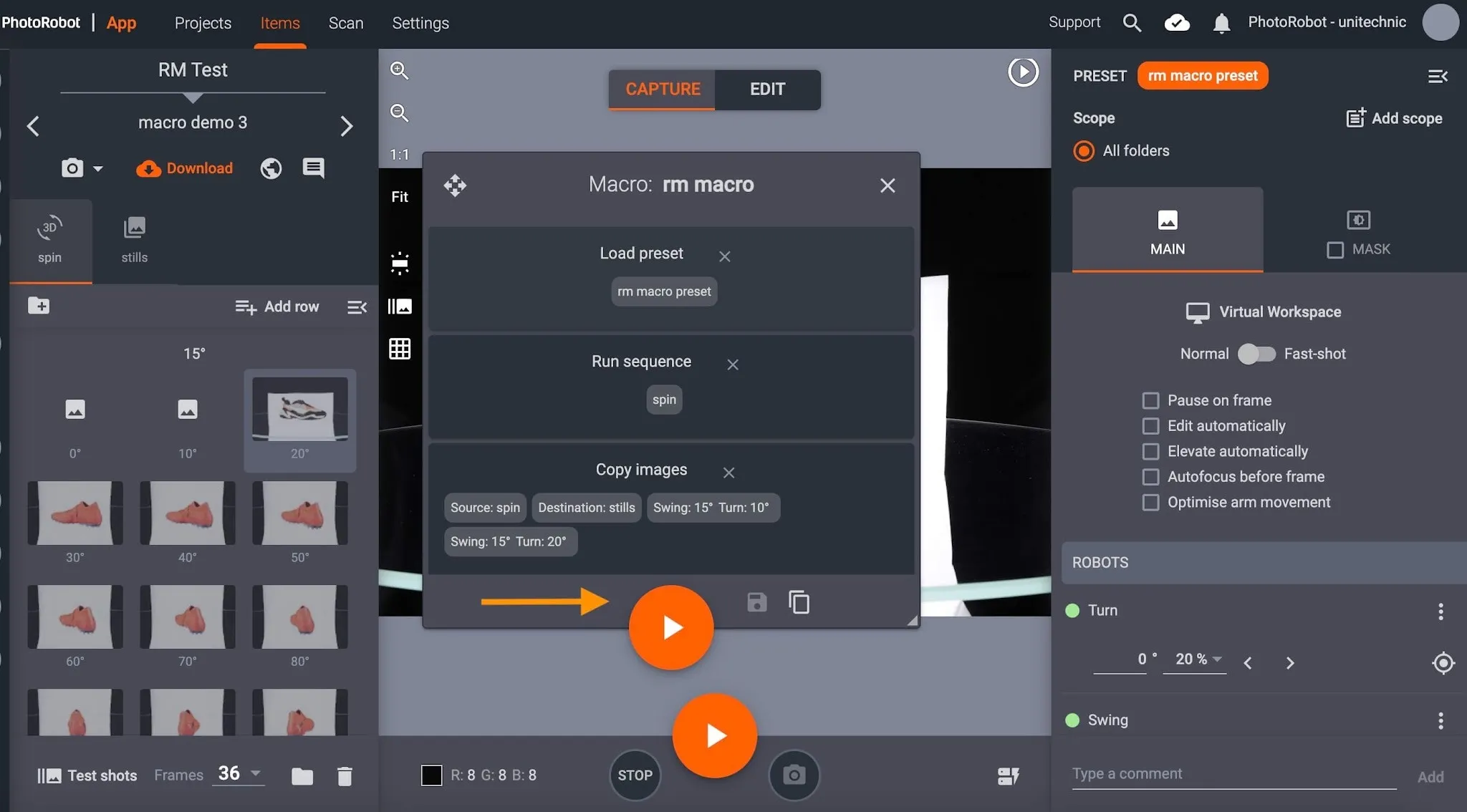
In diesem Fall lauten die Makrobefehle "Sequenz ausführen" (1) für den Rotationsordner, "Bilder (2) aus dem Rotationsordner in einen Standbildordner kopieren" und "Bestimmte Schwung- und Drehwinkel kopieren" (3) in den Fotoordner:
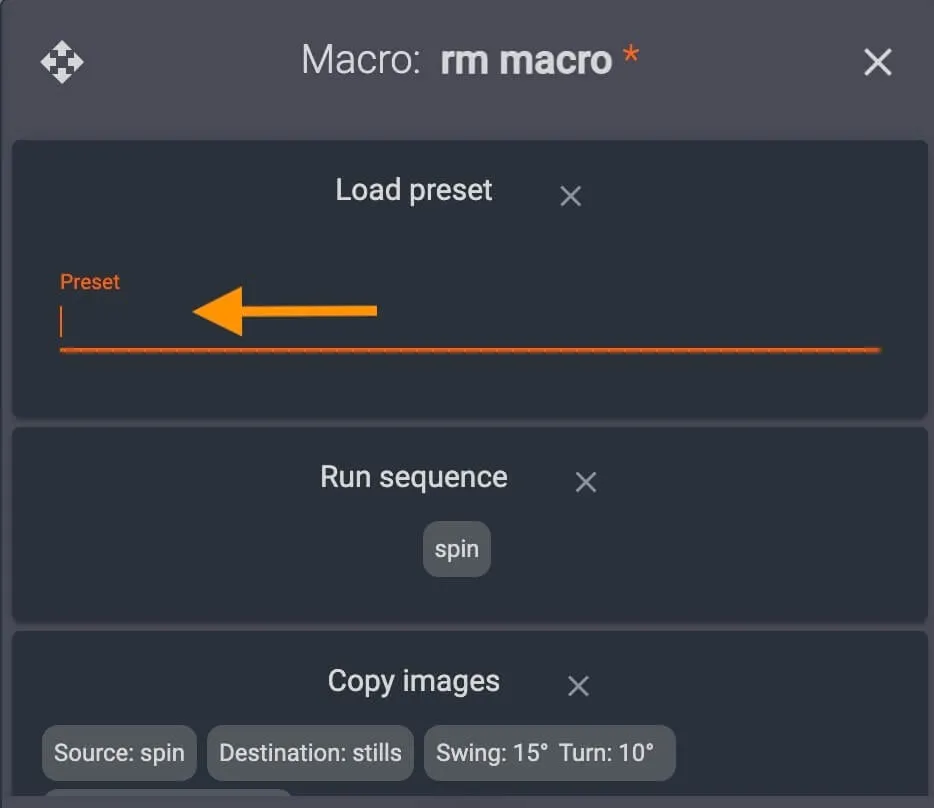
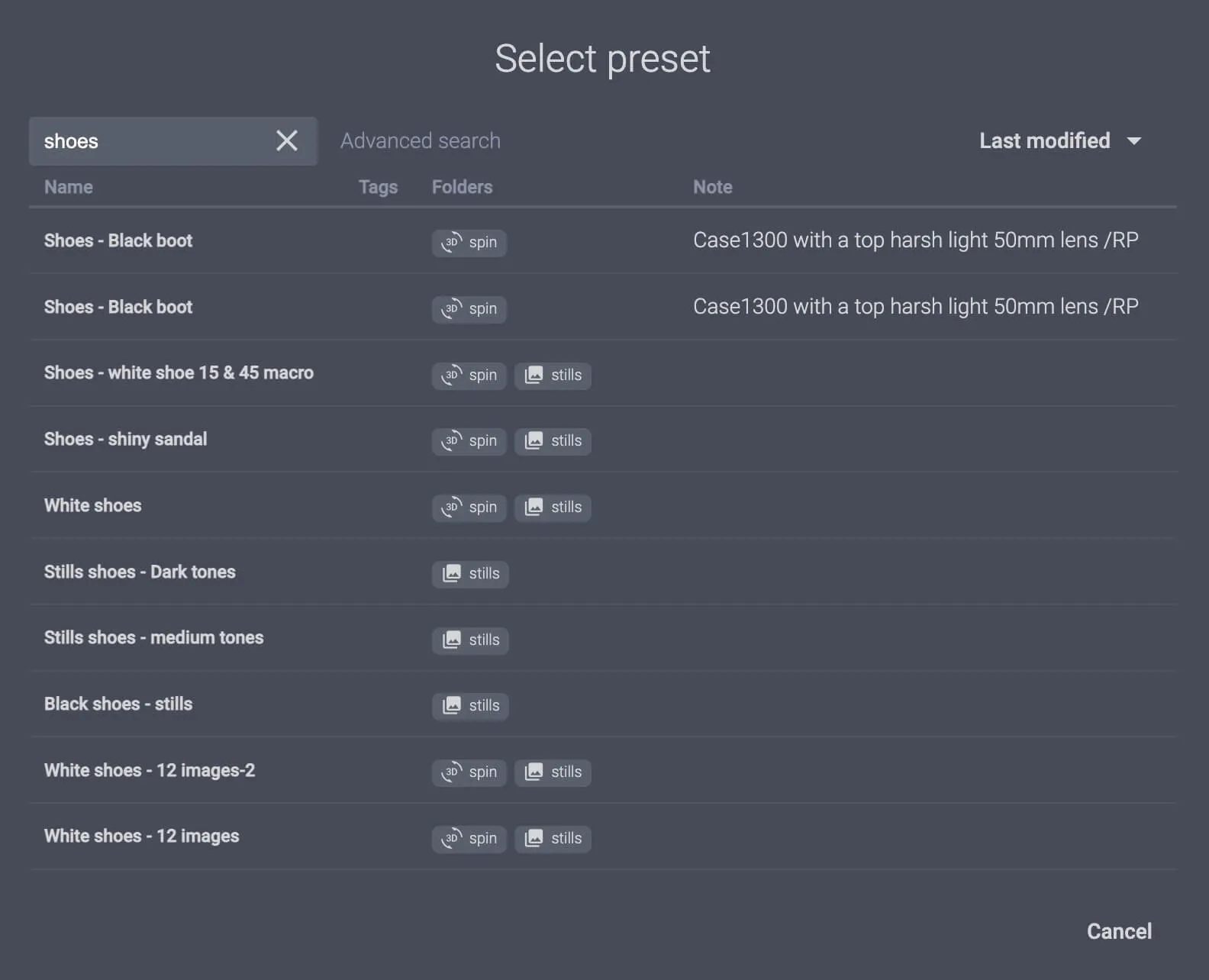
Oft enthält ein Makro auch ein oder mehrere Presets. Verwenden Sie das Preset Load, um einzelne oder mehrere Presets dem neuen Makro zuzuweisen, oder wählen Sie Presets aus, indem Sie auf das leere Preset-Feld klicken.
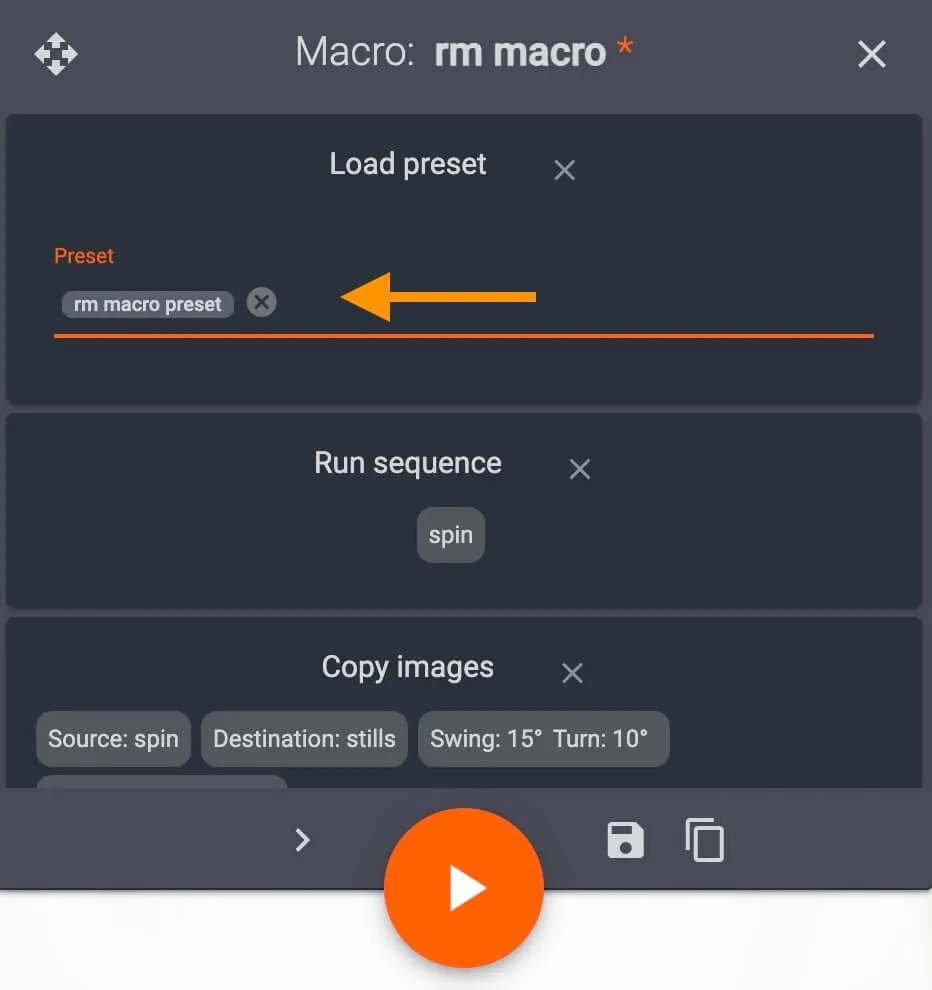
Nachdem alle Befehle zugewiesen wurden, speichern Sie das neue Makro, indem Sie auf das Dateisymbol unten rechts im Makro-Einstellungsfeld klicken.
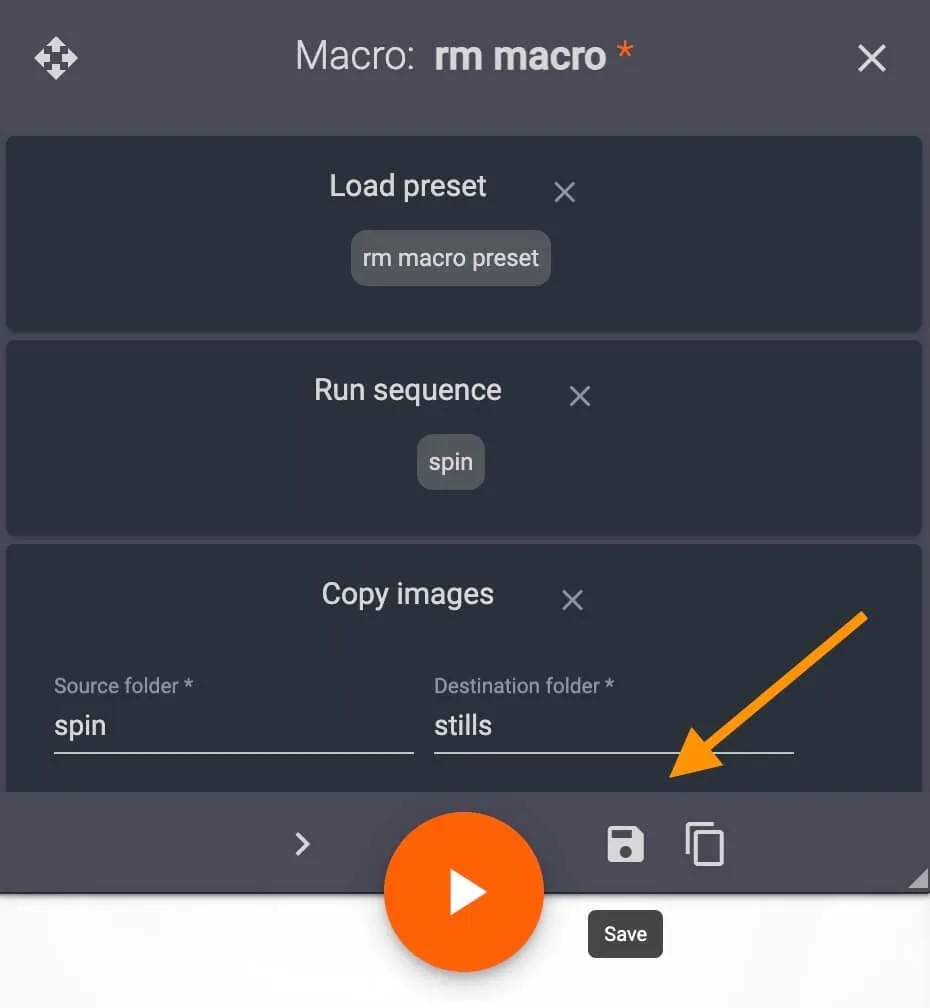
Das Makro wird nun im System gespeichert und kann für jedes Element auf zwei Arten geladen werden.
3 - Wie man ein bestehendes Makro lädt
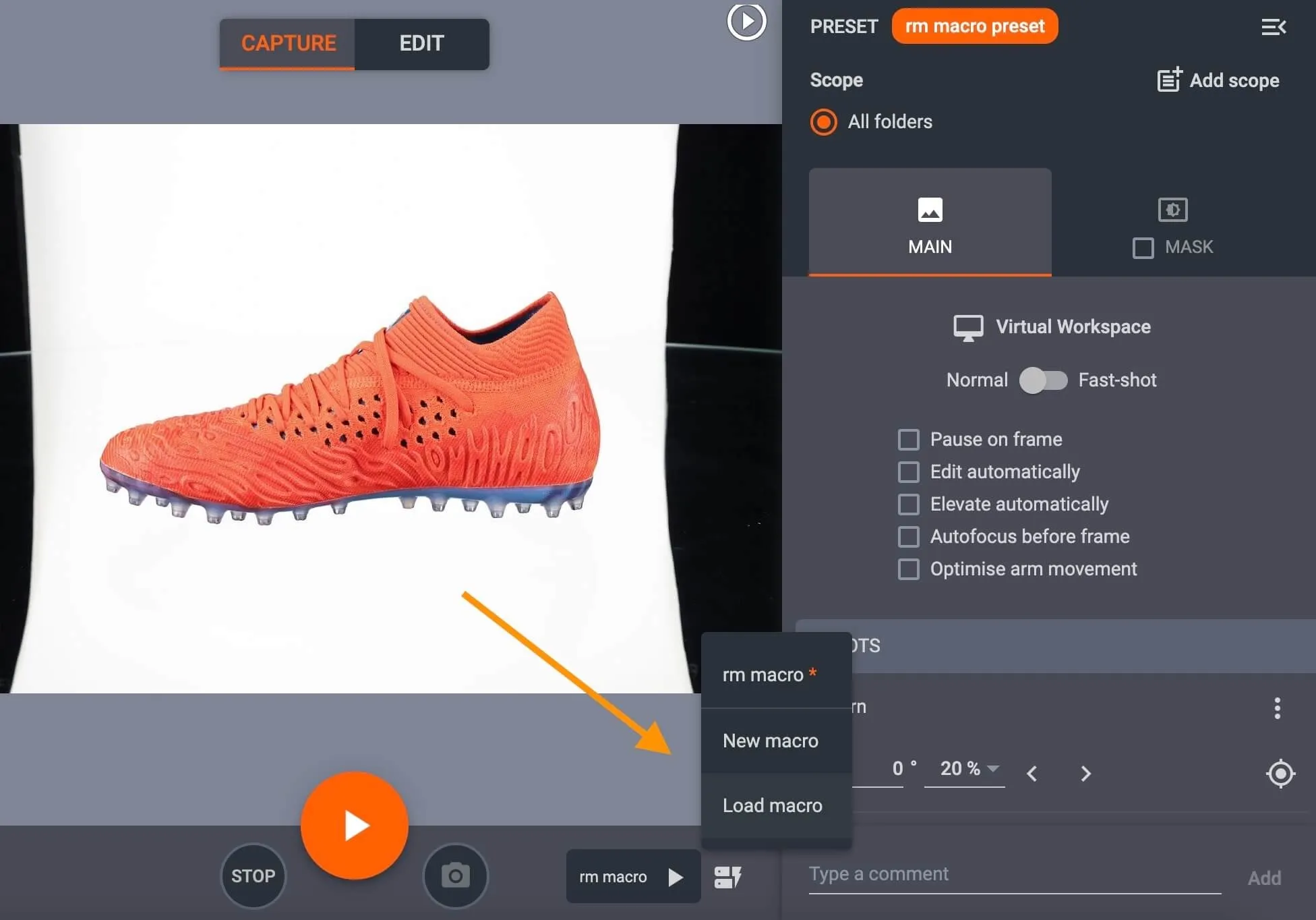
Um ein Makro zu laden, öffne ein beliebiges Element in CAPP und tippe unten rechts in der Capture-Mode-Oberfläche auf die Schaltfläche für Makros .
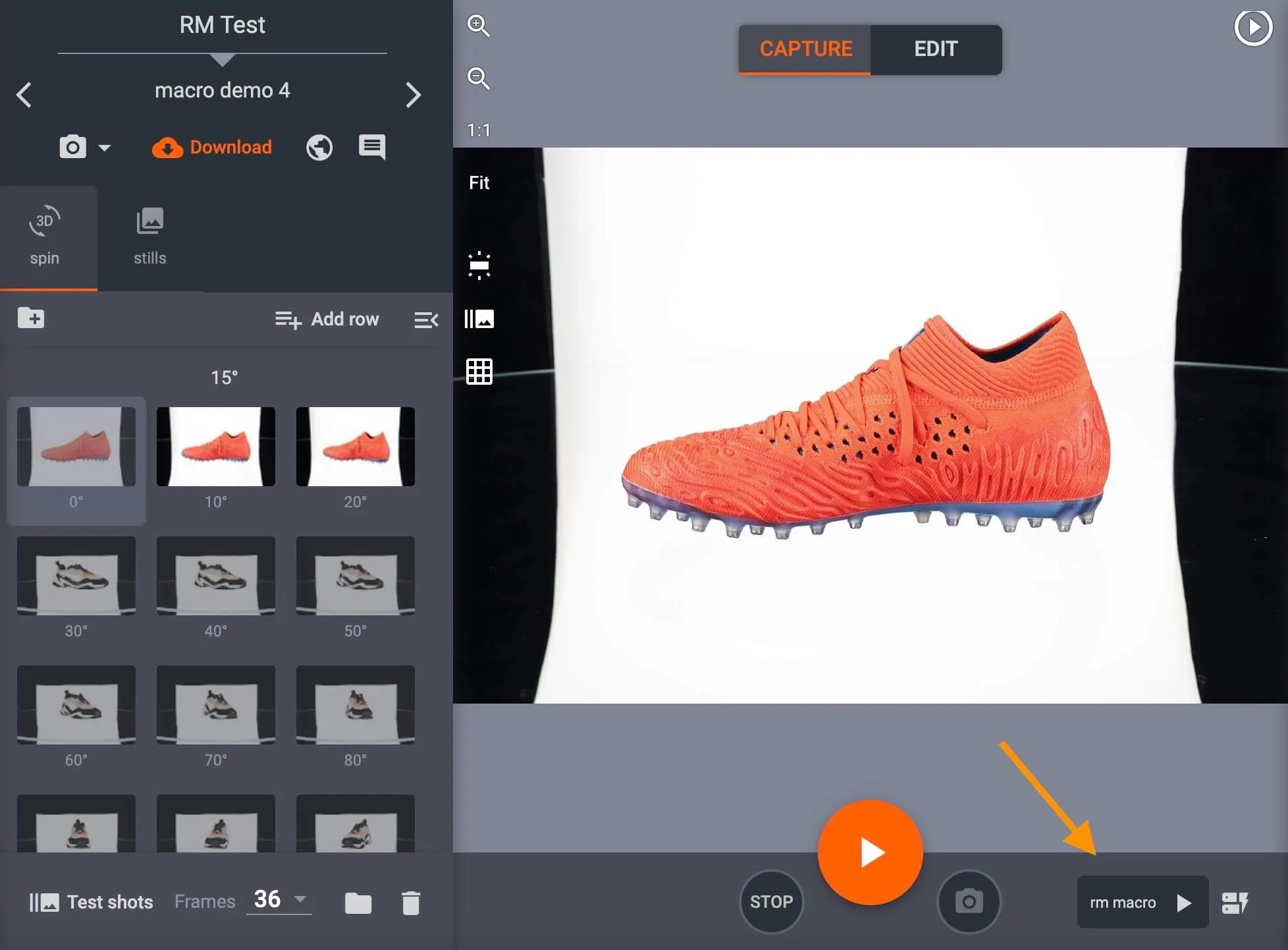
- Der Name des zuvor verwendeten Makros wird links neben der Schaltfläche Makros angezeigt.
- Klicken Sie auf die Start-Schaltfläche neben dem Namen des Makros, um dieses Makro zu laden.
Wenn Sie ein anderes Makro laden, verwenden Sie die Schaltfläche Makros rechts, um aus allen Makros im System auszuwählen.
Nachdem Sie ein Makro ausgewählt haben, führt die Schaltfläche "Wiedergabe" den Aufnahmevorgang mit allen ihr zugewiesenen Makrobefehlen und Voreinstellungen aus.
Wenn Sie einzelne Bilder erneut aufnehmen und das Makro erneut ausführen möchten, wählen Sie zuerst die Frames aus, die erneut aufgenommen werden sollen, und klicken Sie dann auf die Schaltfläche für das vorherige Makro oder Makro laden.
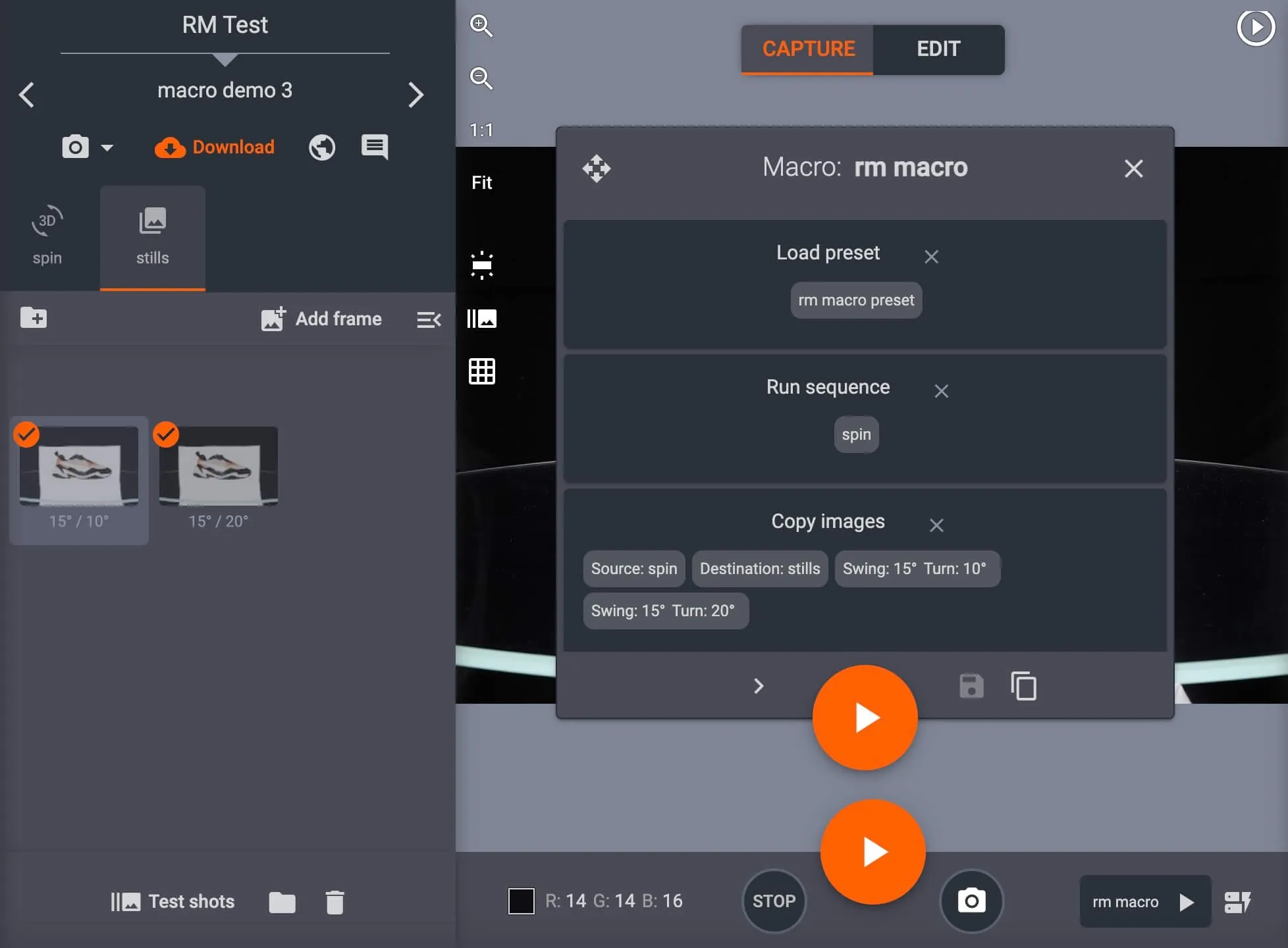
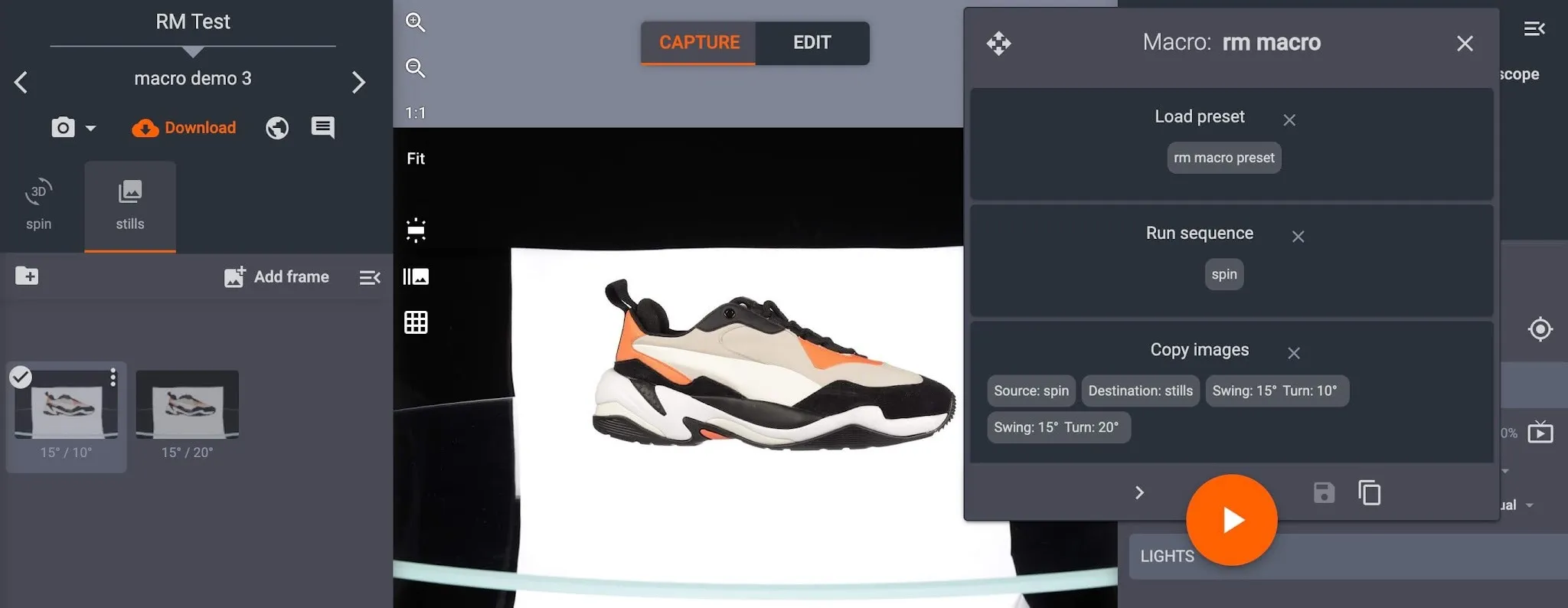
- Überprüfen Sie die Makrobefehle, und wenn Sie zufrieden sind, klicken Sie auf Wiedergabe, um das Makro nur für die ausgewählten Bilder auszuführen.
Hinweis: Wenn Kopierbilder ein zweites Mal ausgeführt werden, ersetzt das Makro die vorherigen Kopien im Ordner durch die neuen Kopien.


EOS Rebel Serie


EOS DSLR-Serie


EOS M spiegellose Serie


PowerShot-Serie


Nahaufnahme / Handheld

Die Canon EOS Rebel Serie bietet einsteigerfreundliche DSLR-Kameras mit solider Bildqualität, intuitiver Bedienung und vielseitigen Funktionen. Diese Kameras sind ideal für Fotografie-Enthusiasten und bieten zuverlässigen Autofokus, dreh- und schwenkbare Touchscreens sowie Full HD- oder 4K-Videoaufnahmen.
Verbindung
Auflösung (MP)
Auflösung
Die Canon EOS DSLR-Serie bietet hochwertige Bilder, einen schnellen Autofokus und Vielseitigkeit und ist damit ideal für die Fotografie und Videoproduktion.
Verbindung
Auflösung (MP)
Auflösung
Die spiegellose Canon EOS M Serie kombiniert kompaktes Design mit DSLR-ähnlicher Leistung. Mit austauschbaren Objektiven, schnellem Autofokus und hochwertigen Bildsensoren eignen sich diese Kameras hervorragend für Reisende und Content-Ersteller, die Mobilität suchen, ohne die Bildqualität zu beeinträchtigen.
Verbindung
Auflösung (MP)
Auflösung
Die Canon PowerShot-Serie bietet kompakte, benutzerfreundliche Kameras für Gelegenheitsfotografen und Enthusiasten. Mit Modellen, die von einfachen Point-and-Shoot-Kameras bis hin zu fortschrittlichen Zoomkameras reichen, bieten sie Komfort, solide Bildqualität und Funktionen wie Bildstabilisierung und 4K-Video.
Verbindung
Auflösung (MP)
Auflösung
Die Canon Nah- und Handkameras sind für detaillierte Nahaufnahmen und Videos konzipiert. Sie sind kompakt und einfach zu bedienen und bieten präzisen Fokus, hochauflösende Bildgebung und vielseitige Makrofunktionen – perfekt für Vlogging, Produktfotografie und kreative Nahaufnahmen.
Verbindung
Auflösung (MP)
Auflösung


